Label Printer Setup for Erply, Directo and Baltic ERPs
A thermal label printer that produces a clean test label from its own front panel, then a shrunken, shifted barcode the moment the ERP sends a job, is almost never faulty. The label left the software as a PDF on an A4 page and the print driver scaled it to fit. Label printer setup for Erply, Directo and the other systems used in Estonia, Latvia, Lithuania and Finland comes down to one question: how does the label leave your software, and do the page sizes at both ends agree?
Here is the hardware shortlist first, then the three routes software uses to reach a thermal printer, and the settings behind most of the support calls we take.
Label printer setup: which model for which situation?
| Your situation | Order this |
|---|---|
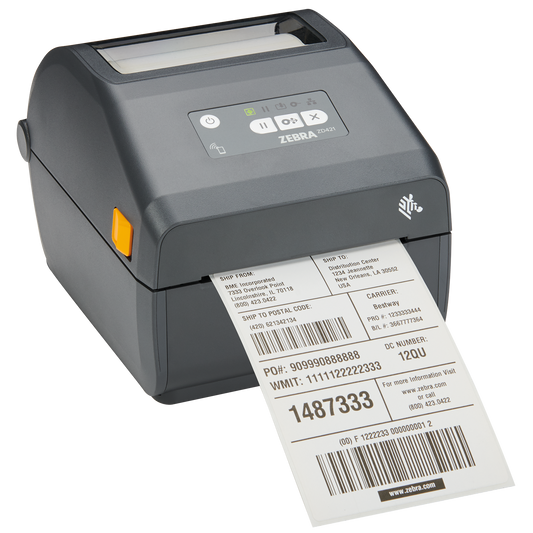
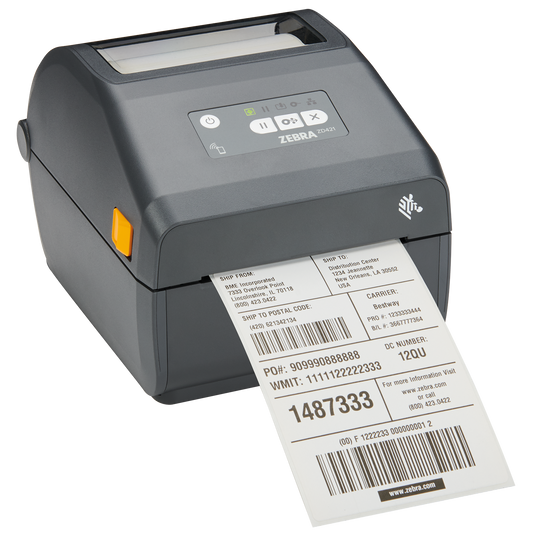
| One office PC, shelf and product labels, printer on the desk beside it | Zebra ZD411d, 203 dpi, USB (ZD4A022-D0EM00EZ) |
| Several users, or a print service, sending to one shared printer | Zebra ZD421d, 203 dpi, USB and Ethernet (ZD4A042-D0EE00EZ) |
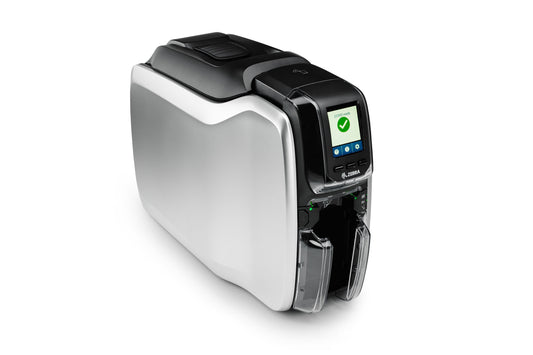
| Labels that must survive damp, cold, oil or abrasion | Zebra ZD421t thermal transfer, Wi-Fi and Bluetooth (ZD4A042-30EX02EZ) |
| Printing most of the day, warehouse desk, a serial device also attached | Zebra ZD621d, 203 dpi, Ethernet and RS-232 (ZD6A042-D0EF00EZ) |
| Labels narrower than about 25 mm, or dense 2D codes | The same families in their 300 dpi versions, listed under desktop label printers |
How does your software actually send a label to the printer?
Every system in daily use here takes one of three routes. Work out which one applies before you change a single setting.
| Route | What happens | What you configure |
|---|---|---|
| Windows driver, PDF or HTML job | The software renders a document and hands it to the operating system, which uses the printer driver | Driver page size, print dialog scale, template page size |
| Raw ZPL | The software sends Zebra printer language straight to the printer, usually over TCP port 9100 | Printer IP address and port, label format inside the software |
| Local print service | A small service on a PC receives the job from a cloud application or a handheld and passes it to a named local printer | Static IP for that PC, firewall port, exact printer names |
Route two never scales anything, because there is no page and no driver involved. Route one is where most of the trouble starts.
Why does the barcode come out too small or cut off?
Because something in the chain still believes the page is A4. Three page sizes have to agree: the template inside your software, the page size in the printer driver, and the scale in the print dialog. Set the driver stock to the physical label, for example 57 x 32 mm, set the template to the same, and set the dialog to 100 per cent or actual size instead of fit to page. In Chrome that means choosing the custom paper size, setting margins to none and switching off headers and footers.
Scaling matters more on a thermal printer than on an office laser. At 203 dpi one dot is 0.125 mm wide, so a Code 128 with a two dot narrow bar measures 0.25 mm. Print that at 80 per cent and the bars no longer land on whole dots. The printer rounds each one, the ratio between narrow and wide bars drifts, and a label that looks fine to the eye fails at the scanner. At 300 dpi a dot is 0.085 mm, which is why small labels and dense 2D codes belong on a 300 dpi printer.
What has to be set before the first label prints straight?
- Media type. Gap, black mark or continuous. Choose the wrong one and the printer either feeds blank labels or stops with a media error.
- Calibration. Run a media calibration after every change of label size or roll type, from the printer control panel or Zebra Setup Utilities. Skipping it is the most common reason every second label comes out blank.
- Darkness and speed. Too dark and the edges bleed, bars merge and the printhead wears faster. Too light and there is not enough contrast for a scanner. Print, scan, adjust one step at a time.
- Direct thermal or thermal transfer. Direct thermal needs no ribbon and fades with heat, sunlight and friction, which is fine for a parcel label read once. Thermal transfer with a resin ribbon survives. Erply's own guidance for wear resistant labels is a thermal transfer printer with a resin ribbon and polyester labels.
- Barcode objects, not barcode fonts. A font renders bars as text and inherits whatever scale the driver applies. A proper barcode object, or ZPL, holds the module width.
How do you set up label printing in Erply?
Erply prints labels from the Back Office, in any section where product information is available, so Sales, PIM, Inventory and Purchase all offer it. The layout is an Actual Reports template, editable from the Edit Template button inside the label printing dialog. You then click Get PDF, which opens a preview, and print from the ordinary system print dialog.
That last step is the one that decides whether the label is usable: it always passes through the driver, so the template page size must equal your physical label and the dialog must stay at 100 per cent. Build the template once at the real label size and the rest is repeatable.
Erply WMS is a different route. It uses a print service installed on a Windows PC: a static IP address on the same network as the Android terminals, wmsPrintService extracted into Program Files, the installer batch file run, and inbound and outbound firewall rules opened for TCP port 5000. Printers are registered in the app by their exact Windows printer names, and a separate printer can be set for DPD parcel labels. Two practical notes. That PC has to stay switched on, and the Windows printer name should be short and free of diacritics, because the app matches it character for character. Give a printer used this way an Ethernet interface rather than USB, so it does not depend on which desk the PC ends up on.
How do you set up label printouts in Directo?
Directo printouts are HTML designs described with XSL, and can be output as PDF through a parameter. A user picks the form by right clicking the Print or Email button on a document. If nobody picks one, Directo takes the first template matching the filters for language, project and object, in the order of the sequence number field. Barcode support covers Code 128 and QR, which is enough for shelf labels, internal codes and pallet identification.
So the work in Directo is template work. Build a separate printout form at the label size instead of reusing an A4 form, give it a sequence number that makes it the automatic choice for that document type, and mark it to appear as its own Print button in the document header so nobody has to right click. Keep at least one unfiltered fallback template for the document type, otherwise printing fails whenever the filters match nothing. On the workstation, make the label printer the default printer in the browser, or keep a separate browser profile for label work.
What if you run Merit Aktiva, SmartAccounts, Standard Books or a till app?
Smaller accounting packages and till applications vary a great deal, and several of them produce A4 documents only. Rather than assume, ask three questions before buying anything:
- Can the system output a document at a page size I define, or is the page fixed at A4?
- Can it export the fields I need, product code, name, price, barcode, batch and date, as CSV or through an API?
- Can it send raw ZPL to a printer, or does everything go through the Windows driver?
If the answers are no, no and only through the driver, the honest route is a CSV export printed from label design software. ZebraDesigner is free from Zebra, handles proper barcode objects, keeps the label size fixed and prints the same file to the same printer every time. That is also the practical answer for a till application that only knows how to print receipts, and for parcel labels, where the carrier hands you a ready made PDF in either A6 or 4 by 6 inch format. Check which of the two your carrier integration produces before you order media.
Common questions
Do I still need the ZDesigner driver if my software sends ZPL?
Not for that traffic, which goes straight to the printer over the network. Install it anyway, so Windows can print test labels and so any other application on the PC can use the printer.
USB or Ethernet?
USB for one PC standing beside the printer. Ethernet or Wi-Fi as soon as a print service, a handheld terminal or a second user is involved, because those need an address rather than a cable.
Why does every second label come out blank?
Almost always calibration or the wrong media type. Recalibrate after the media change, and check whether your roll uses gaps or black marks.
Can two systems print to the same label printer?
Yes, over the network. Keep to one job at a time and avoid sending raw ZPL while a spooled driver job is still in flight, otherwise two formats can end up interleaved on one label.
203 or 300 dpi?
203 dpi for labels from roughly 40 mm wide upward carrying ordinary text. 300 dpi for jewellery and cosmetics labels, small parts, long product names in small point sizes, and dense DataMatrix or QR codes.
Why do my labels fade after a few months?
They are direct thermal. Heat, sunlight and rubbing all erase them. Move to thermal transfer with a resin or wax resin ribbon and a synthetic label if the label has to last.
Where to go next
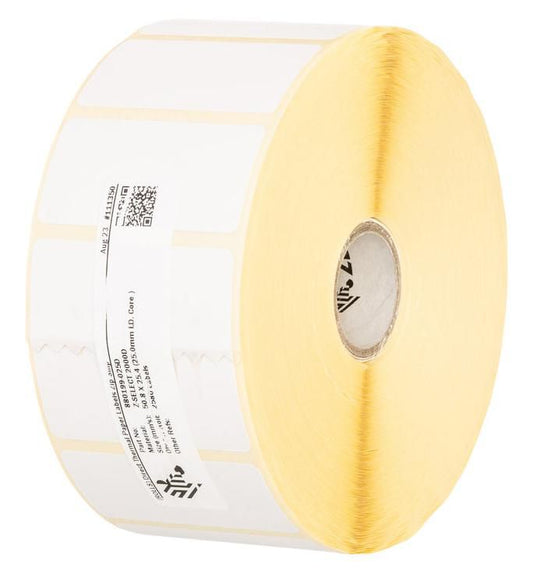
Get the route right first and the hardware choice follows. The full range sits under label printers, with the desk sized models in desktop label printers. Match the media at the same time: labels for the roll itself, and thermal transfer ribbons if you have chosen a thermal transfer model, because a thermal transfer printer without the right ribbon prints nothing at all.
Two vendor pages worth keeping open while you configure: Erply label printing and Directo printout configuration.
Tags:
Previous
Barcode Scanner Setup for Erply, Directo and Loyverse
Next
Receipt Printer Replacement: Upgrade or Repair Your Till